Downloading & saving
Sharing a QR Code
Send a code straight to someone. No downloading, finding the file, and attaching it.
The Share button
Share sits next to Download under the preview. It's available to everyone, including logged-out visitors. There's nothing to sign up for.
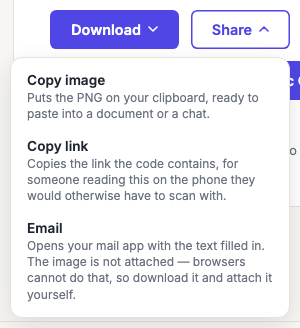
What's in the menu depends on your browser and on what kind of code you've made, so you may not see every option below. That's deliberate. An option that couldn't work isn't shown grayed out, because there'd be no setting to turn it on.
Image, or link?
These are genuinely different things, and which one you want depends on who's receiving it.
- The image is what you want for a poster, a slide, or a group chat where someone will scan it from another device.
- The link is what you want when the person is reading on the phone they'd otherwise have to scan with. You can't scan a screen you're holding.
So the menu offers both where both make sense, rather than guessing.
Share…
Hands the image to your device's own share sheet: messages, mail, notes, whatever you have installed. This is usually the fastest route on a phone.
It appears on most mobile browsers and on Safari and Edge on the desktop. Desktop Firefox doesn't support it, so it won't appear there; use Copy image instead.
Emailing a code
There is no Email entry in the menu, and that is deliberate. A web page cannot attach a file to an email it opens for you: mailto: links carry text and nothing else, everywhere, in every browser. An entry that opened your mail app and then asked you to go back, download the picture and attach it yourself would be more steps than doing it yourself, arriving at the moment you expected to be finished.
Where your browser offers Share…, use it and pick your mail app. That hands over the real image, properly attached. Chrome, Edge and Safari support this on computers as well as phones.
Where it does not (Firefox on a computer), use Copy image and paste into the message. That carries the actual code, and it is fewer steps than downloading a file and attaching it.
Copy image
Puts the PNG straight on your clipboard, ready to paste into a document, a slide, or a chat window. For getting a code into something you're already writing, this is usually quicker than downloading a file and going looking for it.
It's the same image the PNG download gives you: same size, same colors, same frame and caption if you've set one. Not a screenshot of the preview.
A transparent background stays transparent through the clipboard. Whether the app you paste into keeps it is up to that app, some flatten it onto white.
Copy link
Copies what the code actually contains. The web address, phone number, or message. The button names the thing it will copy, so on a phone code it reads Copy phone number.
For a dynamic QR code this is the short link, which stays correct even after you repoint the code later.

Some types tell you what's inside before you send it:
- Wi-Fi codes contain your network password as plain text, and the menu says so. Sending your partner or a colleague the password is the whole point of a Wi-Fi code, so it's offered. The note is there because pasted text sits in a message history in a way a picture doesn't, and that's worth knowing before you post one somewhere public.
- Contact cards and events send the raw card data. A dozen lines starting
BEGIN:VCARD, rather than a tidy summary. That's exactly what you want if you're building an import file, and a surprise if you were expecting a name and a phone number. Attach the image instead when you want something a person will read.
Frequently asked questions
Why don't I see the Share… option?
Your browser doesn't support handing files to a share sheet, desktop Firefox is the common case. Copy image does the same job in one extra step.
Is the shared image the same as the downloaded one?
Yes, identical, pixel for pixel. It's produced by the same code that makes the PNG download, at the size set by Download size, including any frame and caption.
Is it safe to share a Wi-Fi code?
Share it with whoever you'd give the password to. That's the same decision, because it is the password. This is worth being clear about: a QR code is not encryption. Anyone who receives the image can scan it and read your network password, so the picture is not a safer version of the text. It's the same secret in a form that takes one extra step to read.
What that means in practice: sending it to your household or your team is exactly what it's for. Putting it on a public page, a shared drive, or a photo that gets backed up somewhere you don't control gives away your network to anyone who finds it. And that's true of the image just as much as the text.
If you're putting a code where strangers will see it, a guest network is the answer, not a different way of sharing.
Does sharing send my code to Qordway?
No. The image is made in your browser and handed to your device or clipboard directly. Nothing is uploaded unless you save the code to your account.
Can I share to Instagram or TikTok directly?
Not as a dedicated button. On a phone, Share… reaches those apps through your device's own share sheet, which is usually the same number of taps.