Help
Downloading Your QR Code
The Download button opens a dropdown with six formats, covering everyday sharing all the way up to print-shop-ready vector files.
Choosing a format
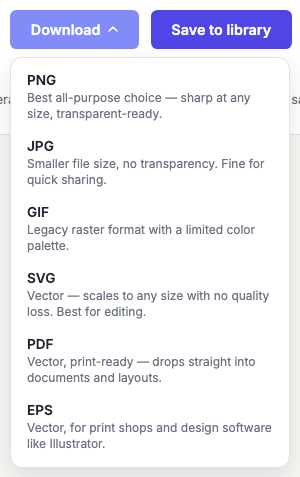
| Format | Type | Reach for it when |
|---|---|---|
| PNG | Raster | Almost anything on screen. Sharp, supports transparency. The default for a reason. |
| JPG | Raster | You need a smaller file and don't need transparency. |
| GIF | Raster | Something old requires it. Limited color palette. |
| SVG | Vector | Any print job, or handing the code to a designer to place in a layout. |
| Vector | Dropping straight into a document, or sending to a print shop. | |
| EPS | Vector | A print shop or design tool specifically asks for it. |
If it's going to be printed, use a vector format. That's SVG, PDF or EPS. The distinction is not cosmetic: a vector file describes the code as shapes, so it stays perfectly crisp at any size, while a raster file is a fixed grid of pixels that softens as soon as anyone scales it up.
Why blurry edges break scans
Soft edges are the single most common cause of a printed code failing. A scanner decides whether each module is dark or light; when the boundary between them is a grey gradient rather than a hard edge, that judgement gets unreliable — and it fails at the worst moment, in poor light or at an angle, rather than on your desk.
The workflow bug that causes this is easy to miss: a raster code enlarged in a layout program is already soft, but it looks fine on a monitor at 100% zoom. A 300 DPI PNG scaled up 200% in InDesign is a 150 DPI code, and nobody notices until it's on paper. Vector files can't have this problem. See testing before printing for a full pre-press checklist.
The size setting
The Download size dropdown offers Small (300px), Medium (500px) and Large (800px). It applies to the raster formats — PNG, JPG and GIF — and sets the pixel dimensions of the file you get.
It has no meaningful effect on SVG, PDF and EPS, which have no fixed resolution: you set the physical size when you place them in a layout, and the code stays sharp at whatever that is.
For raster, pick a size comfortably larger than where it will be displayed and scale down, never up. Scaling down loses nothing; scaling up is what causes the soft edges above.
No watermark, on any plan
Nothing you download here is watermarked — not on the free Basic plan, and not when you are logged out. Every format comes out clean at full resolution. If you have used other generators this may be the opposite of what you expect; some add a caption to free downloads and charge to remove it.
The caption sits outside the code's quiet zone and never touches the pattern, so it has no effect on scanning — it's a credit line, not an overlay. If you're cropping it off, leave at least four modules of blank space on every side or you'll break the code. Quiet zone, explained.
On mobile
On a phone you can also press and hold the QR code preview itself to bring up your browser's native save/share menu — useful for saving an image quickly, or sending it straight into a message, without opening the Download dropdown.
This route always gives you a raster image, so use the Download menu instead if you need a vector file.
Frequently asked questions
Which format should I send to a print shop?
SVG or PDF, unless they specifically ask for EPS. All three are vector and all three will print perfectly. Send the vector file even if they say a PNG is fine — it removes an entire class of problem at no cost to anyone.
My downloaded code won't scan, but the preview did. Why?
Usually the file was resized after download, or a raster format was placed and scaled up. Re-download as SVG and place that instead. If it still fails, the problem is in the design rather than the file — a logo that's too large, too little contrast, or a payload too dense for the printed size. Work through common scanning failures.
Can I download a code I saved earlier?
Yes — open My Code Library and click Load in editor. That restores the design in the generator with its styling intact, and you can download it again in any format or size.
Does the file contain any tracking?
No. A downloaded static code contains only the data you entered — the file is generated in your browser and never touches our servers. If you want scan tracking, that requires a dynamic QR code, which works by encoding a redirect link you can see.
Can I download a code with a transparent background?
Not currently — the background is always a solid color (or a gradient), so every download has an opaque background even in formats like PNG that support transparency. If you need the code to sit on a coloured panel, set the background color to match that panel. That's the more reliable approach anyway: a transparent code takes on whatever ends up behind it, and if that turns out to be dark or busy it will stop scanning.