Design & Best Practices
Common QR Code Scanning Failures & How to Avoid Them
QR code failures aren't mysterious. They come from a short, repeatable list of causes, and, usefully, each one produces a slightly different symptom. If you know how the code is failing, you can usually work out why without guessing. This guide starts with that diagnosis, then covers every cause in detail.
The short version
- Camera does nothing at all → the code isn't being located: quiet zone, finder pattern, or contrast.
- Camera hunts then gives up → it found the code but can't read it: too small, too dense, or too damaged.
- Works sometimes → a marginal code. Treat it as broken; it will fail for others.
- Works for you, not for customers → your camera and lighting are better than theirs.
- Scans but goes somewhere wrong → not a scanning problem at all.
Diagnose it from the symptom
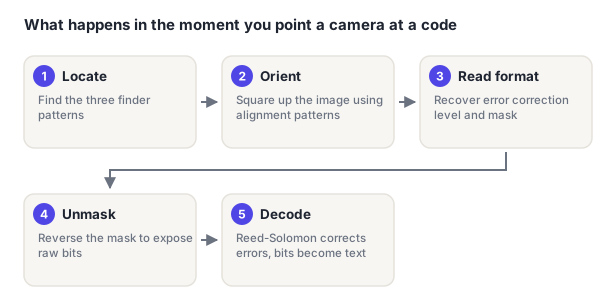
A scanner works in a fixed order: locate the code, orient it, read the format information, then decode. Where it stops tells you which stage failed.
| Symptom | Stage that failed | Likely causes |
|---|---|---|
| No reaction whatsoever, even up close | Location | No quiet zone; damaged or covered finder pattern; contrast too low |
| Reacts only at one specific distance | Location | Code too small, or too dense for its size |
| Hunts for a second or two, then nothing | Decode | Logo too large; damage past the correction budget; blurred modules |
| Works square-on, fails at an angle | Orientation | Curved surface; version 1 code with no alignment pattern |
| Works in some lighting, not others | Location | Marginal contrast; glare from gloss or a screen |
| Works on your phone, not others' | Any | Marginal on every axis (no single cause) |
| Scans instantly, wrong destination | None | Wrong data encoded; dead URL; broken redirect |
"Nothing happens" and "it tries and fails" are completely different problems. Nothing happening means the scanner never recognized there was a code. That's a quiet zone, finder pattern or contrast issue, and error correction is irrelevant. Trying and failing means it found the code and couldn't recover the data. That's size, density, or damage.
Insufficient quiet zone
The most common cause of failures in otherwise perfect-looking codes. The blank four-module margin is how a scanner separates the code from its surroundings, and it's the first thing sacrificed when a layout gets tight.
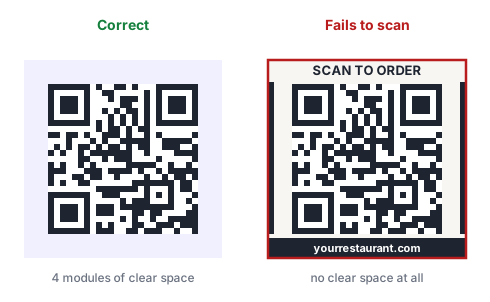
Symptom: no reaction at all, even at ideal distance and lighting.
Fix: four modules of blank space on all sides, treated as immovable. When space is tight, shrink the code, not the margin.
Low contrast
Scanners binarize the image before reading it. A pair of colors that look obviously different to you can be nearly identical in brightness, at which point the code isn't there as far as the camera is concerned.
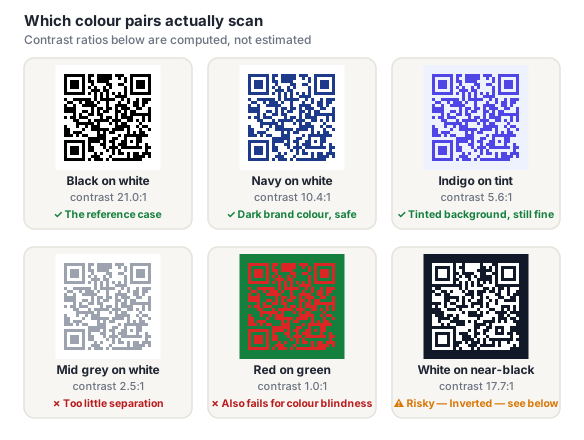
Symptom: works in bright light, fails in dim light; or no reaction at all.
Fix: dark modules on a light background at 7:1 or better. Watch for contrast lost in CMYK conversion. A pair that passes on screen can fail on paper. See the color guide.
Damage or obstruction on a finder pattern
Damage anywhere spends the error correction budget, but damage on one of the three corner squares is categorically different. Those are how the scanner locates the code at all.
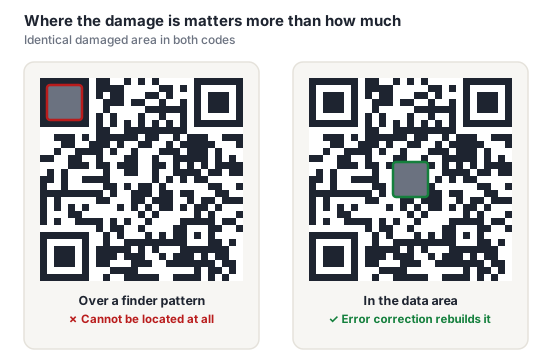
Symptom: no reaction at all.
Fix: keep logos, folds, staples, trims and likely wear points clear of all three corners. Wear elsewhere in the code is survivable; wear on a corner isn't.
Too small for the viewing distance
A code sized to the space available rather than the distance it'll be read from. Purely a dimensional mismatch. Nothing to do with print quality or design.
Symptom: works if you get close, fails at the distance people actually stand.
Fix: printed width ≈ scanning distance ÷ 10, plus headroom. Concrete targets by medium are in the sizing guide.
Modules too small to reproduce
Related to size but distinct: the code may be big enough overall while individual modules are below what print can hold.
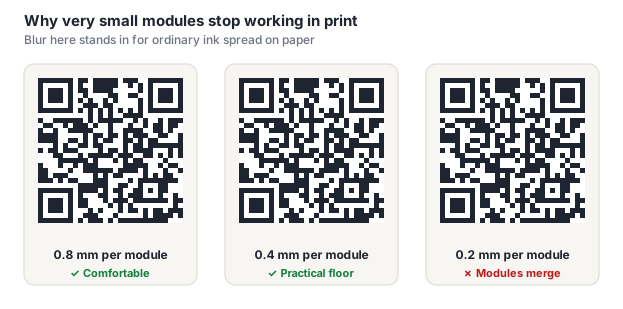
Symptom: hunts and fails; module edges look soft or merged under close inspection.
Fix: keep printed modules at 0.4 mm or larger; more on absorbent stock. Export vector, and never scale a raster code up in a layout.
Payload too long
A long URL with tracking parameters, or a full vCard, forces a higher version, a denser grid, which shrinks every module at the same printed size.
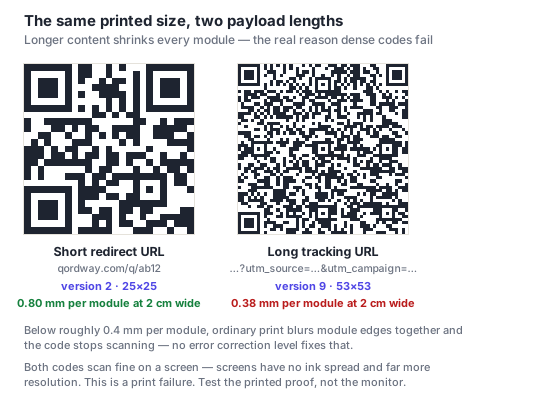
This catches people out constantly, and it is worth being blunt about: a screen has no ink spread, effectively unlimited resolution at these sizes, and a backlit high-contrast display. It is the most forgiving scanning surface there is. A dense code that works perfectly on your monitor can still be unusable on a business card, and the only way to know is to print a proof at final size and scan that. See testing before printing.
Symptom: visibly dense code; hunts and fails at normal distance.
Fix: shorten the destination, or use a dynamic code so the encoded URL stays short regardless of the real destination's length.
Logo too large or misplaced
The most common self-inflicted failure, largely because the widely published guidance is too generous.
Symptom: hunts and fails (too large), or no reaction at all (on a corner).
Fix: keep coverage at or below ~15% of the code's area, always at level H, never touching a finder pattern. We measured the real cliff at 16–20% — see the logo guide.
Placement over artwork
A code sitting directly on a photograph has no quiet zone and no stable brightness threshold underneath it.
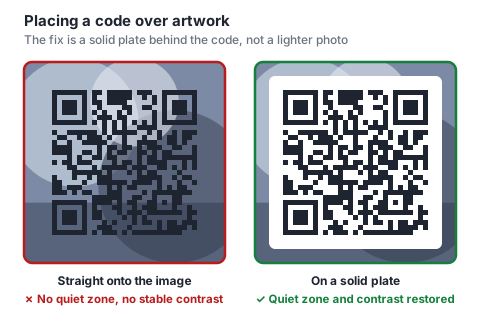
Symptom: no reaction, or wildly inconsistent behavior depending on where in the frame the code sits.
Fix: an opaque plate behind the code, sized to include the full four-module margin.
Glare and reflective surfaces
Gloss lamination, varnish, foil and phone screens all reflect light directly back into the camera. Glare doesn't degrade a code gradually, at the wrong angle it erases a region of it outright.
Symptom: works at some angles, not others; worse under bright directional light.
Fix: matte stock, or a matte spot varnish over the code area on an otherwise glossy piece. For screen-displayed codes (tickets, boarding passes) tell users to raise brightness and tilt slightly. On foil or metal, print on an opaque matte patch.
Curvature and viewing angle
Scanners correct distortion using alignment patterns, but tolerance runs out on tight curves. And version 1 codes have no alignment pattern at all.
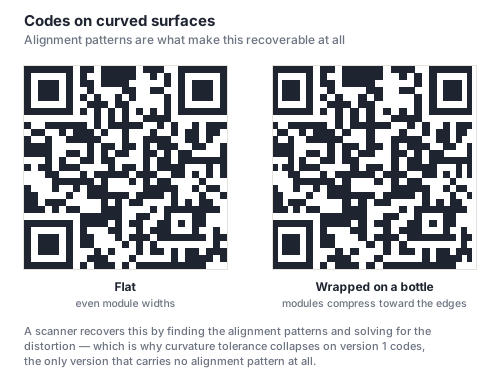
Symptom: works square-on, fails at an angle or on the curve.
Fix: keep the code centered on the visible face; avoid version 1 on anything curved; use a flag label on narrow cylinders. See packaging and curved surfaces.
It scans fine and still fails
Worth stating separately because it's the most expensive category and no amount of design review catches it:
- Wrong data encoded. A typo in a URL, phone number or Wi-Fi password. The code works perfectly and delivers something useless.
- Dead destination. The campaign page was taken down; the code outlived it.
- Broken redirect chain. An intermediate hop drops parameters or requires a login.
- Desktop-only landing page. Every scan arrives on mobile.
- Expired dynamic code. Some free tools disable dynamic codes after a trial period.
All five are prevented by the same habit: test the destination before the code, on a phone, logged out.
Frequently asked questions
Why is my QR code not scanning?
Start with how it fails. If the camera does nothing at all, the code isn't being located: check the quiet zone (four blank modules on every side), the three corner finder patterns, and the contrast. If the camera clearly finds it but can't complete the read, it's a data problem. The code is too small, too dense, or too much of it is covered by a logo or damage. Those two categories have no fixes in common, so identifying which one you have is most of the work.
Why does my QR code work on my phone but not on others?
Because the code is marginal rather than broken, and your conditions are better than average. A newer camera, good light, and you know exactly where to hold it. Scanning isn't binary: a code near its tolerance limit succeeds under good conditions and fails as any of them degrade. Rather than hunting for a single defect, add margin everywhere: make it larger, raise the contrast, shrink the logo, shorten the payload.
Can a QR code stop working over time?
The printed pattern doesn't degrade on its own, but three things around it do. Physical wear accumulates (scuffing, fading, moisture) and eventually exceeds the error correction budget. The destination can disappear if the page is taken down. And a dynamic code stops working entirely if the redirect service shuts down or the code's subscription lapses. Codes on long-lived items like packaging or signage should be checked periodically.
Does laminating a QR code stop it scanning?
Matte lamination is fine and actually helps by protecting against wear. Gloss lamination is the problem: it reflects light straight back into the camera, and at the wrong angle that erases part of the code entirely rather than merely dimming it. If a piece must be gloss laminated, ask for a matte spot varnish over the code area. It's a routine print request and it removes the failure mode completely.
How do I fix a QR code that's already printed?
If it's a dynamic code and the destination is wrong, repoint it. That's the entire point of dynamic codes and it takes seconds. If it's static and you control the domain, you can sometimes redirect the wrong URL to the right one at the server. If the code physically doesn't scan, there is no fix short of reprinting, which is why a physical proof and a dynamic code are both worth the small upfront cost.