QR Code Types
vCard QR Codes
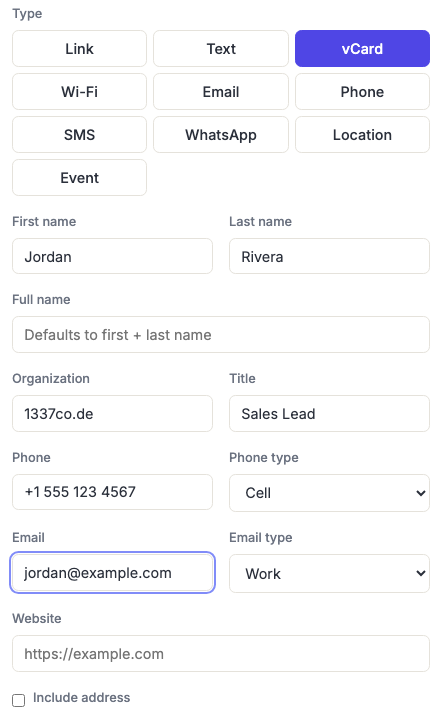
Encodes a full contact record — name, organization, phone, email, website and address — so scanning it offers to save you straight into the phone's address book.
How to create one
- Open the vCard QR code generator — it opens on the vCard type with the fields ready to fill in.
- Fill in as much or as little as you need — every field is optional.
- Pick a type for the phone (Cell, Work, Home, Fax) and email (Work, Home) so they file correctly in the address book.
- Check Include address if you want street, city, region, postal code and country as well.
Keep it short — this is the densest type
A vCard packs more data into a QR code than anything else here, and that has real consequences: more data means a finer grid, and a finer grid needs a bigger printed size to stay readable.
Fill in only what you actually want saved. A name, one phone number and one email produce a code that scans easily off a business card. Add a title, a website, a full postal address and a second number and you can end up with a code that needs most of the card to work reliably.
Practical rules:
- Skip the address unless people genuinely need to post you something — it's the most expensive block of text here.
- Use the shortest form of your website that works (
example.com, nothttps://www.example.com/). - If the code is going on something small, consider a Link type pointing at your contact page instead. It scans far more easily and you can update it later.
See why dense codes fail for what's actually happening.
Names: first, last, and "Full name"
vCard stores a structured name (first and last, kept separate so software can sort and file correctly) and a display name. Fill in first and last, and the display name is assembled for you. Use the Full name field when you want the displayed version to differ — a professional title, a suffix, or a name that doesn't split neatly into two parts.
When to use it
Business cards, conference badges, email signatures, trade-show booths, an office door, the back of a service van. Anywhere someone should end up with your details in their phone rather than a photo they'll never look at again.
It's most valuable exactly where typing is worst: a noisy event, a handshake, a moving vehicle.
Frequently asked questions
Does this work on iPhone and Android?
Yes. Both platforms' camera apps recognise vCard data and offer to create a contact. The exact prompt differs — iOS typically shows a contact preview you confirm, Android usually opens the contact editor pre-filled — but the result is the same.
Can I update my details later without reprinting?
Not with a vCard code — the details are inside the printed pattern, so a job change means every card is out of date. If that's likely, use a Link code pointing at a contact page, and make it a dynamic code so you can repoint it. You lose the one-tap save; you gain the ability to change jobs.
My vCard code won't scan on a business card. What do I do?
It's almost certainly too dense for the printed size. Remove fields — the address first, then the website and title. If it still fails, the code needs to be physically bigger: as a rough guide it should be about a tenth of the distance it's scanned from, and never below about 2 cm on a card. Sizing guide.
Why did some fields not save into the contact?
Address books vary in which vCard fields they import, and some quietly drop ones they don't handle — fax numbers and regional address components are the usual casualties. The core fields (name, organization, phone, email, website) are universally supported.
If I save this code to my library, can I edit one field later?
Yes. Loading a saved vCard from your library brings back every field you filled in — name, organization, phone, email, website and address — so you can change one line and re-download without re-entering the rest. See Saved QR Code Library.