Business Accounts
Shared Library & Review Workflow
Every QR code in the business library moves through three states: Draft, Needs Review, and Approved.
The short version
- A code is created as a Draft by an Admin or Writer.
- Its creator submits it, making it Needs Review.
- An Admin or Reviewer approves it, or rejects it with a required explanation, sending it back to Draft.
- Editing an Approved code sends it back to Draft automatically.
None of this affects what a printed code does. Review status is a label for your team, not a switch. A code that says "Needs Review" still resolves normally for anyone who scans it.
Adding a code
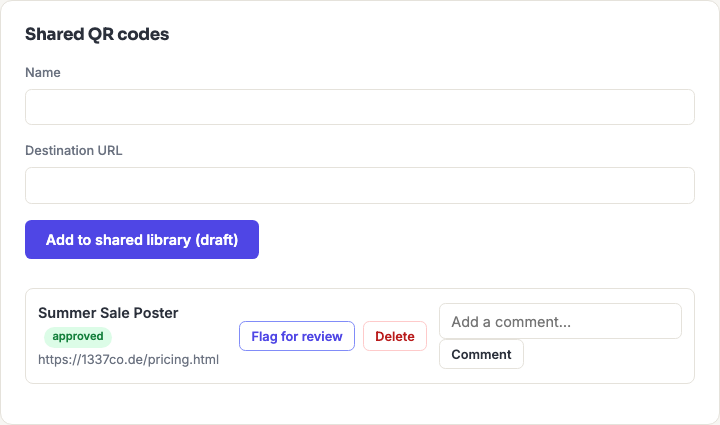
An Admin or Writer fills in a name and destination URL under "Shared QR codes" and clicks Add to shared library (draft). It starts life as a Draft, visible to the whole team but not yet reviewed.
Reviewers and Viewers don't see this form — creating is limited to Admins and Writers. See Roles & Permissions for the full matrix.
The review cycle
- The Writer who created it (or an Admin) clicks Submit for review — status becomes Needs Review. Admins and Reviewers get a notification.
- An Admin or Reviewer either Approves it (status becomes Approved) or Rejects it with a required comment explaining what needs to change (status goes back to Draft). Either way, whoever created it gets a notification.
- Editing an already-Approved code's content automatically resets its status back to Draft — the label always reflects whether the current content actually matches what was reviewed.
A rejection can't be silent. The comment box is mandatory when rejecting — the workflow won't accept a rejection without one. Whoever created the code receives that text as their notification, so the reason travels with the decision instead of living in someone's memory.
What each status actually means
| Status | Means | Does the code work? |
|---|---|---|
| Draft | Created, or edited since approval, or rejected. Not yet signed off. | Yes |
| Needs Review | Submitted, waiting on an Admin or Reviewer. | Yes |
| Approved | The current content passed review. | Yes |
The third column is not a mistake. Review status never gates scanning. If you need a live code to stop resolving, that's a dynamic code's Pause control, which is a separate thing entirely — see Dynamic QR Codes.
Comments
Every shared QR code has its own comment thread, visible to the whole team — used for review feedback, rejection reasons, or general discussion about a code. Anyone can comment, regardless of role, including Viewers.
Rejection comments land in the same thread, so a code carries its own history: what was wrong, what changed, who signed off.
Notifications
A notification appears in the "Notifications" panel at the top of the Business QR Library page when:
- a draft is submitted for review — notifies Admins and Reviewers;
- a code is approved or rejected — notifies whoever created it;
- someone flags a code for review — notifies Admins and Reviewers.
Click Mark read to dismiss one.
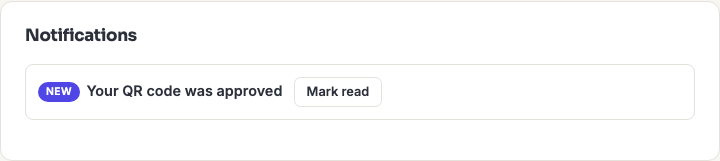
Notifications are shown in the app only today — there's no email alert yet for these events. Someone who never opens the Business QR Library page won't know a code is waiting for them, so on a team where review matters, it's worth agreeing how often people check.
Dynamic QR codes and the shared library
A dynamic QR code can be owned by the business rather than by one person, in which case it lives in the shared library and follows the same draft/review/approved cycle as a static one.
Today this is only possible through the API, using a business-scoped key — creating a dynamic code in the browser always makes it personal, and there's no control on the Business QR Library page to make one. See API Getting Started; any code created with a business key belongs to the team automatically.
The practical consequence: a dynamic code created from the generator by a team member is theirs, counts against their personal allowance, and disappears with their account if it's deleted. For a code going on something printed at volume, that's worth knowing before it ships.
Frequently asked questions
Does an unapproved QR code still work if someone scans it?
Yes. Review status is a label for your team, not an on/off switch — Draft, Needs Review and Approved all scan identically. This is deliberate: any team member including a Viewer can flag a code for review, and it would be dangerous if that could take a printed campaign offline. To actually stop a code resolving, pause it (dynamic codes only).
Someone changed an approved code. How would we know?
Its status drops back to Draft the moment the content or name is edited, so it stops reading as Approved immediately. It has to go through review again before it can say Approved. That means "Approved" always describes the version in front of you, never a version that existed at some point in the past.
Can we require review before a code goes live?
Not as an enforced gate — the workflow is a process your team follows, not a lock the system applies. A code works from the moment it's created. What the workflow gives you is a visible, shared record of whether something has been checked, and a notification trail when it hasn't. If enforcement matters for your use case, the practical approach is to keep the printed artwork itself in review rather than the code record.
Who can delete something from the shared library?
An Admin can delete anything. A Writer can delete only their own codes, and only while they're still drafts — once something has been submitted or approved, a Writer can no longer remove it. Reviewers and Viewers can't delete at all.
Does the shared library replace everyone's personal library?
No, they coexist. Every member keeps their own personal library at My Code Library, which nobody else on the team can see, alongside the shared one. Codes don't move between them — a personal code stays personal.