Business Accounts
Getting Started with a Business Account
Business tier adds a shared QR code library for your whole team, with roles and a review workflow. This page covers creating the team and inviting people; see Roles & Permissions and Shared Library & Review Workflow for what happens next.
Creating your business
Once your account is on Business tier, open Business QR Library from the account menu and enter a business name to create your team. You become its first Admin automatically.
One business per account: you create a team or you belong to one, not both. If you were invited to someone else's business, you'll see their shared library here rather than a create form.
Inviting people
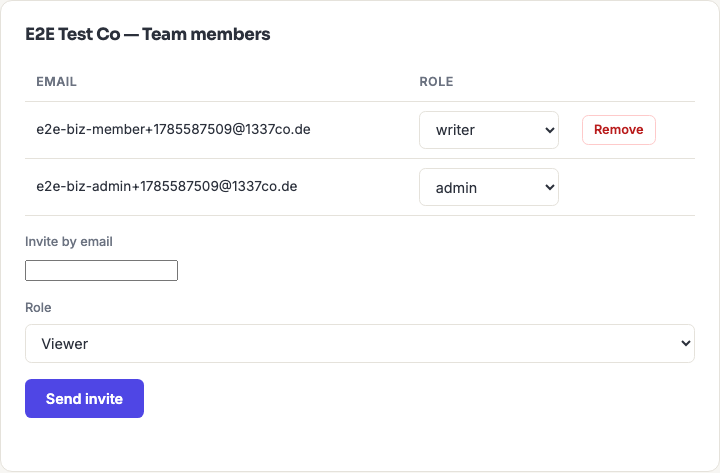
As an Admin, use the Invite by email form on the same page and choose a role for the new person. What happens next depends on whether they already have an account:
- They already have a Qordway account. They're added to your business immediately, with the role you picked.
- They don't yet: the invitation waits for them. As soon as they sign up with that email address and verify it, they're joined to your business automatically with the role you set.
There's no invitation email sent from here yet, so the second case needs a nudge from you, tell the person to sign up at the site with that exact address. The invitation matches on the address, so a typo or a different address means they'll sign up as an unconnected account.
A pending invitation expires after 14 days. If someone signs up after that, they won't be joined to your team automatically and you'll need to invite them again. Which, since they'll then have an account, adds them immediately.
What every seat includes
Every invited teammate gets Advanced-plan features for their own personal use: unlimited saved library, dynamic QR codes, gradients, at no extra cost, for as long as they're on the team and the business's plan is active.
That applies regardless of their role, including Viewers. Their personal library stays entirely private; being on your team doesn't expose it to you or to anyone else, and nobody has to pay separately for Pro to participate.
If someone leaves the team, their personal account reverts to whatever tier it holds on its own. Codes they saved personally stay with them.
Changing roles or removing someone
An Admin can change anyone's role from the dropdown next to their name, or click Remove to take them off the team. Which immediately revokes their access to the shared library.
A business always needs at least one Admin. The last Admin can't be demoted or removed until somebody else is made Admin first; the attempt is refused rather than silently leaving the team unmanageable.
The person whose plan pays for the business stays an Admin. That's whoever created it. They can't be removed or given a different role, because the whole team runs on their plan.
Removing someone doesn't delete anything they created. Their codes stay in the shared library, because the library belongs to the business.
Frequently asked questions
How many people can I add?
As many as your plan has seats. Every member counts as one seat, including you, and so does every invitation that is still waiting to be accepted. Business starts at 2 seats. When every seat is in use, inviting someone else is refused with a message saying so; add seats, or remove a member or cancel a pending invitation to free one. The member list shows how many seats are in use.
The team also gets 200 dynamic QR codes in its shared pool for each seat, separate from each member's own personal codes.
Do teammates need to pay for their own accounts?
No. Being on the team gives each member pro-equivalent features for their own personal use at no additional cost, on top of their access to the shared library.
What happens if the plan that pays for the business ends?
The business is paused. That happens when the paying member's plan is canceled and the period they paid for runs out, when a granted plan reaches its end date, or when that account is suspended or deleted.
While it is paused, the team's dynamic QR codes stop redirecting and show a page saying the code isn't active right now. Nobody can invite members or add or change shared codes, logos, webhooks or business API keys, and business API keys stop working. Members lose the Advanced features the team gave them. Nothing is deleted: the shared library can still be viewed and exported, and an Admin can still remove members or delete codes.
Renew the plan and everything starts working again straight away, including the dynamic codes.
Can someone belong to two businesses?
No. An account belongs to one business at a time. Someone who works with two teams needs a separate account for each, using different email addresses.
What happens to shared codes if I close the business?
Shared codes belong to the business, so treat closing it as losing them. Export anything you need first, and be especially careful with dynamic codes, deleting one permanently kills whatever is already printed.
Can I see my team's personal QR codes?
No, and neither can anyone else. Personal libraries are private to their owner regardless of role, Admin included. Only the shared library is visible to the team.