QR Code Types
Event QR Codes
Encodes a calendar event — title, start and end time, location and description — so scanning it offers to add the date straight to someone's calendar.
How to create one
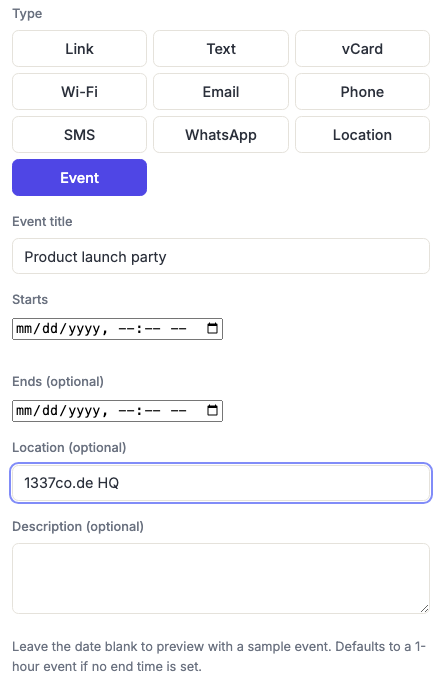
- Open the Event QR code generator — it opens on the Event type with the fields ready to fill in.
- Enter the event title and a start date and time.
- Optionally add an end time, a location, and a description.
Leave the end time blank and the event defaults to lasting one hour. Leave the dates blank entirely and the preview uses a sample event, so you can style the code before you know the date.
How time zones work here
This is the one thing worth understanding before you print anything.
The times you enter are written into the code as local wall-clock times with no time zone attached. A scanning phone interprets them in its own time zone. So a 7pm event scanned by a phone set to a different zone shows as 7pm there too — not the converted equivalent.
For the overwhelmingly common case — a physical event, where everyone scanning the poster is standing in the same time zone as the venue — this is exactly the behaviour you want, and it's why it works this way. For a remote or international event, it's wrong, and you should link to an event page that states the time zone explicitly instead of using this type.
Start and end times
The end time must be after the start time. If it isn't, the generator shows an error and blocks downloading and saving until it's fixed — an event that ends before it begins isn't valid, and different calendar apps handle it in different broken ways, so it's refused outright rather than shipped.
A blank end time is fine and defaults to one hour; that's not an error.
When to use it
Posters and flyers for a one-off event, conference session signage, wedding invitations, class or workshop schedules, "save the date" cards. Anywhere the single most useful action is "put this in my calendar so I don't forget."
It's most effective when the event is far enough away that people will genuinely forget — which is most of them.
Keep the description short
A description is encoded in full inside the code, so a paragraph of text makes the code substantially denser and harder to scan. Use a line, not a brief. If there's more to say, put a URL in the description and let people follow it.
Frequently asked questions
Does this work on iPhone and Android?
Yes, both recognise the standard calendar format this produces and offer to add the event. Android often opens the calendar app pre-filled; iOS typically shows an event preview to confirm. Some third-party scanner apps show raw text instead — use the built-in camera app.
Can I use this for a recurring event?
Not directly — this creates a single event. For a weekly class or a recurring meeting, link to a calendar subscription or an event page instead, which also lets you change details later without reprinting.
The event moved. Can I change the code?
No — the date is inside the printed pattern. This is a strong argument for making event posters a Link code pointing at an event page rather than an Event code, whenever the date might move. A dynamic link code can be repointed after printing; an Event code cannot.
Will people get a reminder?
Whatever their calendar's default is — the code doesn't specify one. Most calendars add a default alert for a new event, but you can't rely on it, and you can't set it from here.
Nothing happened when I scanned it. Why?
Usually a scanner app that displays the text rather than handing it to the calendar. Try the phone's built-in camera. Failing that, check the code isn't too dense to read cleanly — a long description is the usual cause. See common scanning failures.