Your Account
Two-Factor Authentication
2FA adds a 6-digit code from an authenticator app to your login, on top of your password. Available to every account tier — it's a security feature, not a paid perk.
Enabling it
On My Profile, find the "Two-factor authentication" panel and click Enable two-factor authentication. Scan the QR code shown with an authenticator app, or enter the displayed secret manually if you can't scan. Enter the 6-digit code your app shows to confirm and finish enabling.
Any standard authenticator app works — Google Authenticator, Authy, 1Password, Bitwarden, Microsoft Authenticator, or your phone's built-in password manager. There's nothing proprietary here; it's the same time-based code standard everything else uses.
Before you finish, make sure the app you chose is one you'll still have access to later. Some authenticators keep codes only on one device with no backup — if that device is lost or wiped, so is your access. An authenticator that syncs across your devices is the safer choice.
Logging in with 2FA on
After entering your email and password as usual, you'll be asked for a 6-digit code from your authenticator app before you're signed in.
The code changes every 30 seconds, and each one can only be used once. If you enter a code just as it expires, wait for the next one rather than retrying the same digits.
Disabling it
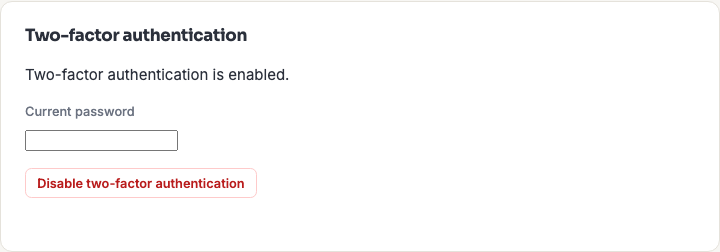
From the same panel, click Disable two-factor authentication and re-enter your current password to confirm.
Remove the entry from your authenticator app afterwards, so a stale code generator doesn't confuse you later.
If you lose your device
There are no backup or recovery codes today. That's worth knowing before you enable 2FA, because it's the one real gap: if you lose access to your authenticator, you cannot get back in on your own.
What you do instead is contact us. An admin can clear the 2FA enrollment on your account, after which you sign in with just your password and can enrol a new device. It works, but it isn't instant, so:
- Use an authenticator that backs up or syncs across devices.
- Or enrol the same account on a second device while you have the QR code on screen — the secret can be scanned by more than one app.
Frequently asked questions
Is 2FA available on the free tier?
Yes, on every tier including free. Account security isn't something we think should sit behind a paywall.
Do I need to enter a code every single time I log in?
Yes, whenever you log in fresh. It isn't requested again while an existing session is active, so day-to-day use is unaffected — it's the login step that's protected.
Can I use SMS instead of an authenticator app?
No — authenticator apps only. That's deliberate: SMS codes can be intercepted by SIM-swap attacks, and an app-based code never travels over the network at all.
What if my codes are always rejected?
Almost always a clock problem. These codes are derived from the current time, so if your phone's clock has drifted the codes won't match. Turn on automatic date and time on the device and try again.
Does 2FA protect my API keys too?
No — API keys authenticate on their own, independently of your login, so 2FA doesn't apply to API requests. Treat a key as a credential in its own right and revoke it if it's ever exposed. See API Getting Started.