Customizing your QR code
Eye Colors & Shapes
The three big squares in the corners can be colored and shaped separately from the rest of the code. And they are the part a scanner looks at first.
The short version
- The corner squares are called eyes. Each has an outer ring, the eye frame, and a solid eye center.
- Eye frame color and eye center color are separate controls, and each can be solid or a gradient.
- Both start on Match code, which means "whatever the dots are". Leave them there and nothing changes.
- Eye center shape switches the middle between a dot and a square. Dot is the default.
- Everything here is cosmetic. It changes how the eyes are drawn, never the data.
Where the controls are
They sit in the styling column, below the dot and corner styles: Eye frame color, Eye center color, and Eye center shape.
Each color control has a mode toggle above it. Match code is the default and is not the same as picking the current dot color by hand: a matched eye follows the code. Recolor the dots and the eyes come with them. Pick a color explicitly and it stays put, which is what you want for a two-tone code and not what you want if you are still experimenting with the main color.
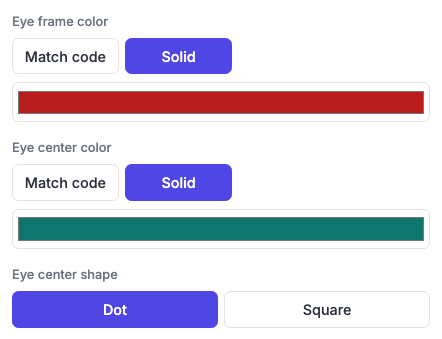
Every code made before this control existed has matched eyes, so nothing you saved previously has been repainted.
Eye center shape
Two options, Dot and Square. Dot is what the generator uses unless you change it, and rounds the middle of each eye into a circle; Square is the shape the QR specification itself draws.

Both are safe. The center of an eye is a solid block either way, and a scanner is looking for the ratio of dark to light across the eye rather than for corners on the middle square. The outer frame is the part that carries the alignment information, and that is why there is no control that reshapes it into something unrecognizable.
The two shapes are drawn identically in the apps, so an eye styled on your phone opens the same way on the website.
What to be careful about
An eye is the first thing a scanner finds. Before it can read a single module it has to locate all three corners, and it does that by looking for the same dark-light-dark pattern in every direction across each one. Anything that flattens the contrast between the frame and the center makes that harder.
- Keep the eyes dark against a light background, the same rule the rest of the code follows. A pale eye on a pale field is the single most common way a styled code stops scanning.
- Do not color the frame and the center nearly the same shade. Identical is fine, that is what Match code produces, and clearly different is fine. It is the near-miss that costs you contrast without buying any visible effect.
- A gradient across an eye is fine at the top of its range and risky at the bottom. The eye is small, so a gradient that ends pale ends pale over a large fraction of it.
The contrast warning in the generator watches the dot and background colors, not the eyes. Check the eyes yourself with a plain camera app before printing. Which color pairs actually scan has the measurements.
Gradients on an eye
Gradient eyes are part of a paid plan, exactly like gradients elsewhere in the generator. On a plan that does not include them the gradient option is not offered, and a saved code that used one reopens with a solid color rather than an empty control.
Linear and radial are both available, and the gradient is drawn across that eye alone rather than across the whole code, three separate small gradients, not one big one sampled in three places.
Frequently asked questions
Do colored eyes make a code harder to scan?
Not by themselves. Color is not what a scanner reads, brightness is. An eye in a dark color against a light background behaves like a black one. The failures come from pale eyes, low-contrast pairs, or a light-on-dark code, and all three are avoidable.
Can I color each of the three eyes differently?
No. The three eyes always match each other. Coloring one differently from the other two would break the symmetry a scanner uses to work out which way up the code is.
Does this work in the apps?
Yes. Eye frame color, eye center color and eye center shape are all in the iPhone, iPad and Android apps, drawn by the same geometry the website uses.
My eyes went back to the code color when I opened a saved code.
That means the code was saved with them set to Match code. Either because it predates the control, or because they were never changed. Set them explicitly and save again.
Can I change the shape of the outer frame?
The corner style control does that: Square, Dot or Extra rounded. This page's controls are the colors and the center; that one is the frame's outline.